LEONIDAKIT, CALCULATOR TUTORIAL
Understand the numbers.
Build your plan.
One question, one example, then it’s your turn to try. Learn to plan your goals, your time and your purchases with the site’s real tools.
- 16chapters
- 9calculator tools
- 6languages, screenshots redone
- 0official figures made up
THE PATH, STEP 01
Your first calculation
Choose a question, enter your numbers, read the answer, then save whatever helps you decide. You can change the Tutorial examples. No number here is an official in-game price or earnings figure.
- Tell it where you’re starting from. “I already have” is the money you have now. “Money I set aside” is what you don’t want to spend.
- Tell it how you earn. Either bit by bit, per hour of play, or at the end of each mission.
- Check and keep. The fields are the same from one tool to the next. “☆ Save this calculation” stores your try in “My calculations”.
On small screens, the tools are laid out in two columns. On a keyboard, the left and right arrows move from one tool to the next. The “Back to the Tutorial chapter” link takes you back to where you started.
Back to the contentsTHE PATH, STEP 02
Ask your question
How do I say what I want to calculate, in my own words?
At the top of the calculator, the “What do you want to calculate?” bar reads your sentence, opens the right tool and puts your numbers in the fields. You can also start from an example (“My first million”, “I have 30 minutes”…) or from a ready-made goal, from $100k to $10M.
Right under the bar, “Who answers?” lets you choose who reads your sentence. A line always says which one is on, and the answer ends with “Answer from the AI” or “Local answer, no AI”. Your choice stays on this device and also applies to Léo.
- AI
- The site’s own reading answers first. If your sentence says more than it can fill in (a percentage, a “what if…”, two scenarios), the AI reads it next. You get 15 free AI questions every 12 h, shared between the calculator and Léo, with nothing to pay; the line says how many are left and, as a countdown, how long until they come back. Then the site switches back to local by itself until that moment.
- Local
- The site reads your sentence in your browser: keywords and amounts. Nothing is sent, and your free AI questions are kept for later.
Your turn
- Under the bar, choose “AI” or “Local”.
- Write your question with your numbers, for example “I have $200,000 and I play 45 min a day, I want 1 million”, then click “Find the right calculation”.
- You can also say it: the microphone button next to the field listens to your sentence and types it for you (it only appears if your browser can transcribe; the transcription is done by your browser, not by the site).
- Read the answer line: the tool that opened, each field filled in, then who answered. Check the fields, then read the result in the tool.

EXERCISE, NO AI
Click the “I have 30 minutes” example: My play time opens with 30 minutes in the field. Examples and ready-made goals are always read by the site, without AI: they don’t count against your questions.
Change it: write “How long to reach 2 million if I earn 150000 per hour?”. My goal opens with $2,000,000 to reach and $150,000 earned per hour.
A common mistake to avoid
Thinking the whole sentence was understood. The local reading fills in the fields it recognizes and may leave out part of your sentence, such as a percentage or a “what if…”. The answer line names every field it filled in: check them before reading the result.
What leaves your device, and what stays
In Local mode, nothing is sent. In AI mode, your question, the page and a summary of your fields go to the site’s AI function, then to the AI provider (see Legal and privacy); the site keeps no questions. To count your free questions, a random identifier is kept on your device. Don’t write personal information in a question. All the details are in the legal notice.
THE PATH, STEP 03
Simple or Expert?
The three modes give the same answer with the same numbers: they only change how you fill things in and read them. Simple shows the answer sentence, the numbers behind it and your next step; the rest (“What matters in this calculation”, the trade-off, the formula) is tucked into collapsed sections: tap a section to open it, and you can change each assumption in one click. Step by step asks one question at a time, explains why it’s asking and skips the ones that no longer matter (for example when your goal is already reached). Expert adds every setting (fees, cooldown, share…), the tables, the curves (with clickable points), the thresholds, the explanations and the comparison with a saved calculation, also in collapsible sections. The business plan has its three modes too.
“What matters in this calculation” sums up in one line what decided the answer. Its details (“Full details: conditions, numbers, ruled-out criteria”) have six parts: what the calculation is looking for and over what period, the required conditions, the numbers used (each with its source or status), what decides the answer, what would change the answer, and the ruled-out criteria, each with its reason. It’s built from the criteria actually used for your situation.
Switching modes keeps your numbers. A setting changed in Expert mode still counts in Simple: a “Changed in Expert mode” line says so above the tool. Each tool keeps its own mode.


The buttons above only change the screenshot. To run a calculation, open the real tool.
Try Simple mode Try Expert mode ↗Back to the contentsTHE PATH, STEP 04
My goal
How long until I have my money?
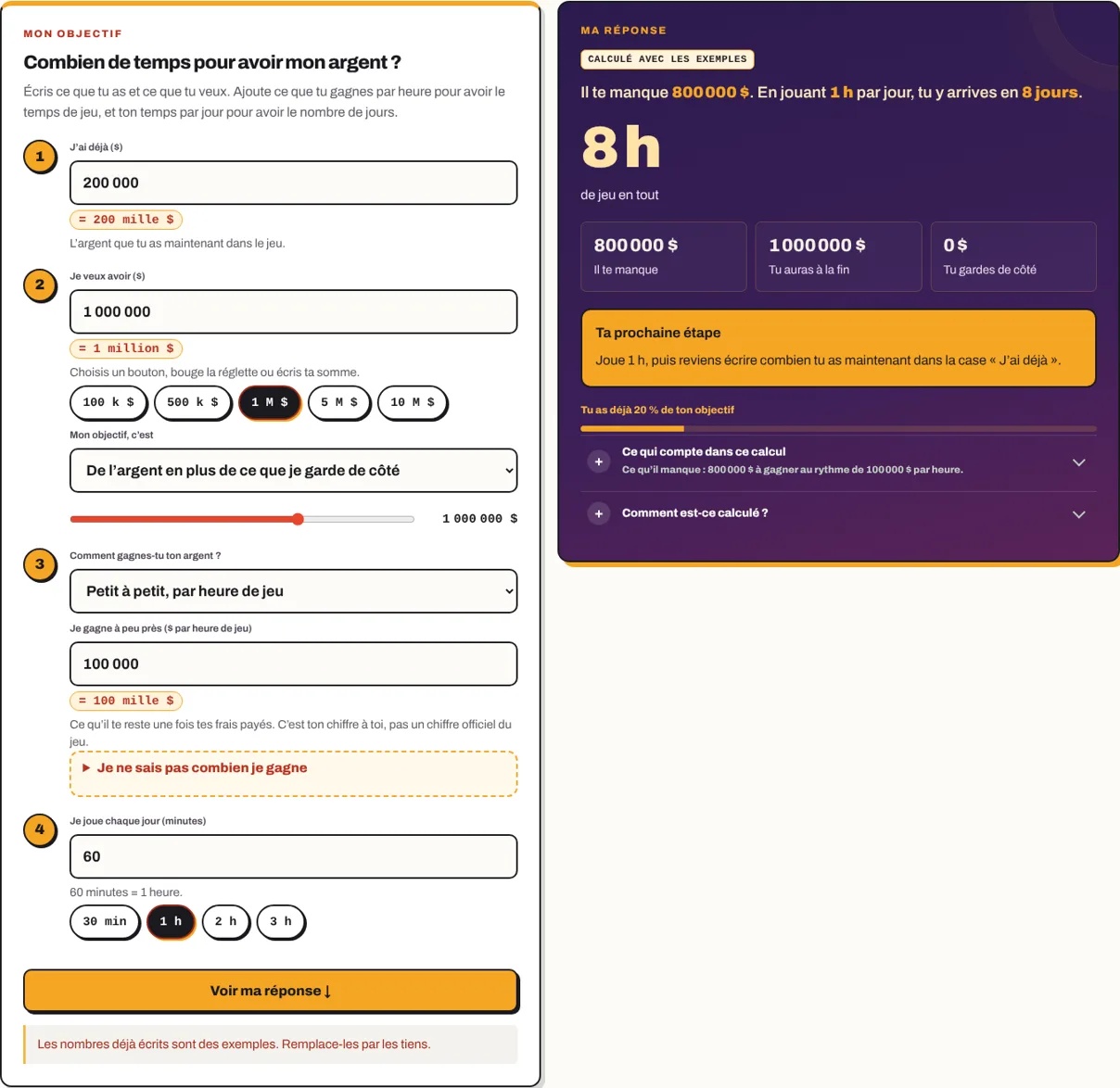
Start here. You say how much you have, how much you want and what you earn: the calculator tells you how much play time you need and in how many days you’ll get there.
- In Simple
- Four fields: “I already have”, “I want to have”, “I earn about ($ per hour of play)” and “I play every day”. The quick buttons and the slider save you from typing.
- In Expert
- “My goal is”: extra money on top of what I set aside, the money I’ll have in total, or what I’ll earn from now on. Then “Money set aside, expenses, deadline”: the money I set aside, the purchases to pay before my goal, what I spend each session (consumables, ammo…) and “I want to get there in (days)”. Also “Which activity gets me to my goal fastest?”, “What if the number moves by 20%?” and “Compare with a saved calculation”. At the bottom of “Money set aside, expenses, deadline”, “I resell what I already own” adds to what you have the resale prices entered in My purchases for what you own (simulated resale). And under “My assumptions”, “My extra assumptions”: healing, fines, money lost on death or arrest, passive income, bonus, splitting among players, the money of one character only, all unchecked at first.
What the calculation takes into account
What your goal means changes the target: “on top of what I set aside” adds your reserve, “in total” counts it in, “from now on” doesn’t count what you already have. Purchases to pay first and what you spend each session add time. With a deadline, the answer says whether you’ll make it and, if not, how much more you’d need to play or earn. With “My extra assumptions” (Expert mode), healing, fines and money lost on death or arrest are added to your expenses per session, and passive income is added to your earnings per hour (at most its maximum stock per session). Example: 100 health points lost per session and a heal that restores 25 points for $500, so $2,000 of healing per session; with $100,000 per hour and 1 h sessions, you move forward at $98,000 per hour. These are examples, not game figures.
All this tool’s criteria (12), in the words of “What matters in this calculation”
- Money available now Condition: What you have, minus the money set aside.
- Money set aside Condition: The amount you never want to go below.
- Available players Condition: The number of players an activity needs.
- Your session time Condition: The duration of one play session.
- Running cost Number: What the item or activity costs each session, use or hour.
- Net earnings Number: Your share of the reward minus the activity’s fees.
- Active play time Number: Prep and activity, without the cooldowns.
- Cooldown before repeating Number: The wait before you can do the same activity again.
- Payment timing Number: The reward comes at the end of the activity; the fees are paid before.
- Progress toward the goal Number: Where you stand compared to your goal.
- Over what period Number: Next session, number of uses, hours of play or period.
- Failed attempts Assumption: What a failed attempt costs: lost fees, time to redo.
Your turn
- Enter what you have in “I already have” and what you want in “I want to have”. You can click $1M or move the slider.
- Tell it how you earn your money: bit by bit per hour of play, or at the end of each mission. If you don’t know how much you earn, open “I don’t know how much I earn”.
- Choose your play time per day (30 min, 1 h, 2 h, 3 h) and read the answer: “You still need… Playing… you’ll get there in… days”.
PERSONAL EXAMPLE, NOT GTA VI DATA
Example to try: I already have $200,000, I want to have $1,000,000, I earn about $100,000 per hour of play, I play 1 h per day. These are examples, not in-game numbers.
Reading the answer
The answer says: “You still need $800,000. Playing 1 h per day, you’ll get there in 8 days.” Below it: the big number (8 h of play in total) and the details: what you’re missing, what you’ll have at the end, what you set aside.
Try changing it: Change “I earn about” from $100,000 to $50,000: the time doubles. Click 2 h per day: the number of days goes down, but not the play time.
A common mistake to avoid
Entering all your money in “I earn about”. This field is what you earn in one hour of play, once your fees are paid.
THE PATH, STEP 05
My activities
Which activity earns the most?
Enter what your missions earn you and how long they take. The calculator ranks them and tells you what you earn by repeating them during your play time.
- In Simple
- “How much time do I have?” and “Activity to repeat”. The choice between “I play solo” and “I play with others”. The three examples A, B and C are already filled in.
- In Expert
- The “Enter what your activities earn you.” panel: reward, what you pay each time, duration, prep, cooldown before repeating, your share, what you need to buy once before you start, players needed. “Show” filters the ranking: what earns the most per hour, cheapest to start, doable solo, under 30 minutes, what I can pay for now.
What the calculation takes into account
An activity that gets ruled out always comes with its reason: not enough players, missing starting purchase, too long for your time, or it costs more than it earns. Your share applies only once (players don’t split the reward again) and an activity only pays once it’s finished. With “My extra assumptions” (Expert mode): the bonus raises each reward (example: 50% more, $25,000 counts as $37,500); the equal split counts 100 ÷ number of players for a multiplayer mission (example: 4 players, 25%); when you count the money of one character only, a mission played only with the other one is ruled out, and the calculator says so.
All this tool’s criteria (12), in the words of “What matters in this calculation”
- Money available now Condition: What you have, minus the money set aside.
- Money set aside Condition: The amount you never want to go below.
- What you need to own Condition: A vehicle, weapon or property without which an activity can’t be done.
- Available players Condition: The number of players an activity needs.
- Your session time Condition: The duration of one play session.
- Running cost Number: What the item or activity costs each session, use or hour.
- Net earnings Number: Your share of the reward minus the activity’s fees.
- Active play time Number: Prep and activity, without the cooldowns.
- Cooldown before repeating Number: The wait before you can do the same activity again.
- Payment timing Number: The reward comes at the end of the activity; the fees are paid before.
- Simulated mechanic Assumption: Fuel, maintenance, repairs, ammo… if you choose to simulate them.
- Failed attempts Assumption: What a failed attempt costs: lost fees, time to redo.
Your turn
- Tell it how much time you have (30 min, 1 h, 2 h, 3 h) and choose the activity to repeat.
- Read the answer: “In 1 h, by repeating …, you earn … with … missions”, and “What earns the most per hour”.
- To use your real numbers, open an activity under “Enter what your activities earn you.” and replace the examples.

See the old guide to entering an activity

PERSONAL EXAMPLE, NOT GTA VI DATA
Example to try: 60 minutes with example A (short missions). One mission earns $25,000, costs $2,500 and takes 15 minutes.
Reading the answer
In 1 h, you do 3 missions and earn $67,500. The “What your activities earn” table ranks A, B and C by earnings per hour, cooldown included.
Try changing it: Choose example C: it requires $500,000 in purchases before you start. The answer tells you clearly how much you’re missing and what to do.
A common mistake to avoid
Forgetting to say you play with others: an activity built for 4 players won’t fit if you’re solo. Check “With others” and enter how many of you there are.
THE PATH, STEP 06
My play time
I have 30 minutes: what should I do?
You say how much time you have tonight. The calculator suggests a schedule with your activities, and tells you what you earn and how much closer it gets you to your goal.
- In Simple
- “How much time do I have?” (15 to 90 min), “Solo” or “With others” and the activities you’re up for. Your money, what you set aside and your activities’ numbers can be changed right in this tool.
- In Expert
- “Same activity in a row, at most”, the days per week you play, the usual duration of a session, “What if the number moves by 20%?”, and “Other doable schedules”, which shows the other possible choices.
What the calculation takes into account
The extra assumptions from Expert mode count here too: bonus, equal split and the money of one character only change your missions; healing, fines, death and arrest are added to the expenses taken off each session for the sessions you have left.
All this tool’s criteria (13), in the words of “What matters in this calculation”
- Money available now Condition: What you have, minus the money set aside.
- Money set aside Condition: The amount you never want to go below.
- What you need to own Condition: A vehicle, weapon or property without which an activity can’t be done.
- Available players Condition: The number of players an activity needs.
- Your session time Condition: The duration of one play session.
- Not two things at once Condition: The same player can’t do two activities at the same time.
- Running cost Number: What the item or activity costs each session, use or hour.
- Net earnings Number: Your share of the reward minus the activity’s fees.
- Active play time Number: Prep and activity, without the cooldowns.
- Cooldown before repeating Number: The wait before you can do the same activity again.
- Payment timing Number: The reward comes at the end of the activity; the fees are paid before.
- Mix up activities Preference: How many times in a row the same activity can come up, at most.
- Failed attempts Assumption: What a failed attempt costs: lost fees, time to redo.
Your turn
- Choose your time: 15, 30, 45, 60 or 90 minutes.
- Check the activities you’re up for tonight. Open “Enter my activities here” to change their earnings, fees and durations without leaving this tool.
- Read what you earn and the schedule in order. “This session moves your goal forward by …%” only shows up if you entered a goal.

PERSONAL EXAMPLE, NOT GTA VI DATA
Example to try: 60 minutes, all three examples checked, $200,000 already in your pocket.
Reading the answer
“In 1 h, you can earn $110,000 with 1 mission. Start with Example B: long missions.” Then: this session moves your goal forward by 13.75%, you’ll still need $690,000, 7 more sessions, or about 7 days.
Try changing it: Switch to 30 minutes: only the short missions fit. An unfinished mission earns nothing, so the schedule never cuts a mission in half.
A common mistake to avoid
Thinking the schedule is the only one possible. The calculator tries lots of schedules and keeps the one that earns the most, but a better one may exist.
THE PATH, STEP 07
My purchases
Can I buy it?
Choose a car, a weapon, a place or a business from the site, or enter a price. The calculator tells you whether you can buy it now, and if not, how much play time you need.
- In Simple
- Two steps: “What’s your purchase?” (name and price) and “How much do you have?” (what you have, what you set aside). What you earn and your goal are extras, if you want.
- In Expert
- “What do you use it for?”, “Does it cost something each session?” (“It costs me each session” and “I use it for (sessions)”), “How long to earn back this price?”. In Expert: “Options I take”, “Required upfront fees”, “I could resell it” (your assumption, never counted in today’s money), “Its capabilities, if you know them” (where it can go, seats), “Does this purchase make me money?”, “What if the number moves by 20%?” and “Compare with a saved calculation”.
What the calculation takes into account
Being able to pay now and being able to keep it up are two separate answers: the price, the options and the required fees must fit in the money available (what you have minus what you set aside); a cost each session can make the purchase impossible to keep up after a few sessions, and the answer says so. A vehicle or weapon already checked in “My garage” or “My arsenal” comes in as “already owned”: nothing to pay, and you can uncheck “Purchase already owned” to buy another one.
All this tool’s criteria (14), in the words of “What matters in this calculation”
- Money available now Condition: What you have, minus the money set aside.
- Money set aside Condition: The amount you never want to go below.
- Fits your needs Condition: Terrain, passengers, space or capacity your use requires.
- Actually buyable Condition: Can the item be bought in GTA VI?
- Full purchase cost Number: Price, must-have options and upfront fees.
- Running cost Number: What the item or activity costs each session, use or hour.
- Cost over time Number: Purchase cost plus running cost over the chosen period.
- What the purchase earns you extra Number: The difference from what you already earn without the purchase.
- Time to earn back the price Number: The play time it takes for the extra earnings to equal the cost.
- Money left Number: What’s left after a step.
- Planned resale Assumption: What you’d get back by reselling.
- How often you use it Number: The number of sessions or uses over the period.
- Over what period Number: Next session, number of uses, hours of play or period.
- Simulated mechanic Assumption: Fuel, maintenance, repairs, ammo… if you choose to simulate them.
Your turn
- Search for a page in “Find your next purchase” and click “I want this one”, or keep “My custom purchase”. A place or a region is for visiting: the calculator doesn’t offer it as a purchase.
- Enter the price you imagine if the site doesn’t know it, then what you have and what you set aside, right here.
- Read the answer: “Yes, you can buy it now” or “Not yet: you’re short…”. If you want to know that play time, open “How long to earn back this price?”

PERSONAL EXAMPLE, NOT GTA VI DATA
Example to try: a $100,000 purchase, $200,000 already in your pocket, $50,000 earned per hour of play.
Reading the answer
“Yes, you can buy it now, without touching the money you set aside.” And “You’ll still have”: $100,000. The details also give the play time to earn back this price (2 h) and where your goal stands whether you buy or not.
Tweak it: Set a price of $400,000: “Not yet: you’re short $200,000, without touching the money you set aside.” Your next step says: “Play another 4 h with what you earn ($50,000 per hour), then come back.”
A common mistake to avoid
Mistaking the price shown for an official one. Until Rockstar publishes anything, every price is “not known yet”, and you’re the one who enters yours.
THE PATH, STEP 08
Compare item pages
How do I see two item pages side by side?
In My purchases, every page in the catalog has a Compare checkbox. As soon as you check the first one, a “My comparison” bar appears below the cards.
- Simple
- Search for a page, pick a category, check “Compare” on 2 or 3 pages.
- Expert
- The same comparison. What’s shown depends on the type of page: no made-up scores.
- Check “Compare” on one page.
- Check a second one, then a third if you like. You can change your search without losing the pages you already checked.
- Read the table below the cards. On a phone, it scrolls sideways. The “×” removes a page.

READING EXERCISE
Compare two pages. “Not known yet” means we don’t have the value: it isn’t zero, and it doesn’t mean the two are equal.
Remove a page with the “×” and compare other things. Speed, acceleration and seats only show up for vehicles.
A common mistake to avoid
An item’s official name doesn’t confirm its price. The table can’t name the best value for money without comparable, sourced data.
THE PATH, STEP 09
What should I buy first?
In what order should I buy to get everything as fast as possible?
Add your purchases. The calculator compares every possible order for up to 6 purchases (beyond that, a shorter search, clearly labeled as such), respects what has to be bought before something else, and suggests the best order for what you want. Your own order stays shown next to it.
- In Simple
- “Add a purchase (search the site)” with suggestions as you type, or “Add something else, without a page”. Then “What it costs, as you imagine it” for each purchase, and “I want”: get everything as fast as possible, get a money-making purchase as early as possible, keep the most money at each step, or keep my own order.
- In Expert
- For each purchase (“Edit”): fees and upgrades, other upfront fees, “What I earn after this purchase”, “Purchase already owned”, “It costs me each session” and “Buy before this one (if required)”. Also “Compare orders by wait time” below the answer (your order, the reverse, prices low to high, the suggested order and the other useful orders, with “Apply the reverse order” and “Sort by price, low to high”), “What if the number moves by 20%?” and “Compare with a saved calculation”.
What the calculation takes into account
A purchase that requires another one is never placed before it; a shared requirement is paid only once; a loop (A requires B, which requires A) blocks the calculation and says why. If a price is missing, the answer says “Path to complete” instead of assuming 0. “What matters in this calculation” tells you which goal the order serves and how many orders were compared (“All possible sequences… were compared”, or the search limit beyond 6 purchases). The simulated expenses per session and the passive income from “My extra assumptions” (Expert mode) count in the net earnings per hour used for waiting.
All this tool’s criteria (11), in the words of “What matters in this calculation”
- Money available now Condition: What you have, minus the money set aside.
- Money set aside Condition: The amount you never want to go below.
- What you need to own Condition: A vehicle, weapon or property without which an activity can’t be done.
- Fits your needs Condition: Terrain, passengers, space or capacity your use requires.
- Actually buyable Condition: Can the item be bought in GTA VI?
- Full purchase cost Number: Price, must-have options and upfront fees.
- What the purchase earns you extra Number: The difference from what you already earn without the purchase.
- Time to earn back the price Number: The play time it takes for the extra earnings to equal the cost.
- Money left Number: What’s left after a step.
- Your want score Preference: How much you want this item.
- What matters most to you Preference: Fastest, cheapest up front, cheapest overall, keeping money set aside.
Your turn
- Enter what you have, what you set aside and, if you need to wait, what you earn per hour. Type the first letters of a name (“fe” suggests Feroci, Cheetah…) and pick from the list, or add a custom purchase.
- Enter the price you imagine for each one; the calculator waits until you have the money before each purchase.
- Read the answer: “Your order is the right one…” or the suggested order, then “It’s all yours in … of play”. Change “I want” to see the best order for another goal; your order stays shown next to it.

PERSONAL EXAMPLE, NOT GTA VI DATA
Example to try: Feroci at $30,000, Kamacho at $100,000 and Bati 801 at $150,000 (your imagined prices), with $200,000 already in your pocket and $50,000 earned per hour of play.
Reading the answer
The answer says: “Your order is the right one to get everything as fast as possible. It’s all yours in 1 h 36 of play.” Each step shows when you can pay for the purchase (Feroci and Kamacho right away, Bati 801 after 1 h 36 of play), what you have left afterward and what you then earn per hour. The comparison is about your goal, not about how much you want each item.
Tweak it: Move a purchase up or down with the arrows, or remove it: the answer updates right away. “Undo” brings back a purchase you removed by mistake. Open “Compare orders by wait time”: “Apply the reverse order” or “Sort by price, low to high” changes your order, and the answer follows.
A common mistake to avoid
Making up what a purchase earns you. “What I earn after this purchase” is your own number: leave 0 for a car that earns nothing.
THE PATH, STEP 10
Is it worth it?
Is this purchase worth it for me, and when does it start paying off?
The calculator tells three cases apart: a fun purchase (it earns nothing, so we look at what it costs you, what you have left and how much it delays your goal), a purchase that unlocks activities, and a purchase that earns you extra money. For the last two, it compares the situation with the purchase and without it, over the same play time: only what the purchase earns ON TOP of what you were already earning counts.
- In Simple
- Three steps: “Which purchase?”, “Can I afford it?” and “Why this purchase?” The answer starts with yes, no or not yet, with the numbers behind it, your next step (buy, wait, check a number), the trade-off with or without the purchase and the assumptions that matter, each one editable in one click.
- In Expert
- The “With or without this purchase” curve, the break-even points (after how many sessions it’s paid back, what it would need to earn per hour to be paid back within the time you use it), the linked activities with their numbers, “What if the number moves by 20%?” and “Compare with a saved calculation”.
What the calculation takes into account
Resale is an assumption for later: it never makes a purchase affordable today. A cost each session can flip the answer; the missing number that matters most is named first.
All this tool’s criteria (16), in the words of “What matters in this calculation”
- Money available now Condition: What you have, minus the money set aside.
- Money set aside Condition: The amount you never want to go below.
- Available players Condition: The number of players an activity needs.
- Actually buyable Condition: Can the item be bought in GTA VI?
- Full purchase cost Number: Price, must-have options and upfront fees.
- Running cost Number: What the item or activity costs each session, use or hour.
- Cost over time Number: Purchase cost plus running cost over the chosen period.
- Net earnings Number: Your share of the reward minus the activity’s fees.
- What the purchase earns you extra Number: The difference from what you already earn without the purchase.
- Time to earn back the price Number: The play time it takes for the extra earnings to equal the cost.
- Money left Number: What’s left after a step.
- Planned resale Assumption: What you’d get back by reselling.
- How often you use it Number: The number of sessions or uses over the period.
- Over what period Number: Next session, number of uses, hours of play or period.
- What matters most to you Preference: Fastest, cheapest up front, cheapest overall, keeping money set aside.
- Simulated mechanic Assumption: Fuel, maintenance, repairs, ammo… if you choose to simulate them.
Your turn
- Search for the purchase on the site or click “Enter a custom purchase”. Enter the price, what you have and what you set aside.
- For a fun purchase, read what you have left, the time to get your money back and the delay to your goal. Compare “Buy now” and “Wait”; nobody puts a price on fun.
- If the purchase earns money, tell it how much extra it makes you per hour (or check the activities it unlocks) and how long you’ll use it: the answer says after how many hours it’s paid back and how much extra it leaves you at the end. What you were already earning (My goal) is the baseline.

PERSONAL EXAMPLE, NOT GTA VI DATA
Example to try (made-up numbers): a $120,000 custom purchase that earns you $20,000 more per hour over 10 h of play, with $500,000 in your pocket.
Reading the answer
“Yes, it’s worth it: paid back after 6 h of play. After 10 h, you’ll have $80,000 more than if you hadn’t bought it.” If you only use it for 4 h, the answer becomes “Not over 4 h”; if it costs as much as it earns, “No: never paid back”.
Tweak it: From a business page (Stock 305, Rideout Customs…), click “Is it worth it?”: the purchase comes in already filled out. Then “Add it to my business plan” makes it your goal.
A common mistake to avoid
Counting what you were already earning without the purchase as money it earned you. The calculator always compares with what you earned before: enter that number in My goal so the comparison is fair.
THE PATH, STEP 11
My budget
How do I split my money?
You split your money between the things you want while setting some aside. The calculator tells you what you have left, or how much you’re short.
- In Simple
- “I already have”, “Which purchases to count?” (my purchases from “What should I buy first?”, or I split it myself: five visible categories, vehicles, investments, gear, consumables, other purchases) and “Other planned expenses”.
- In Expert
- “Over how many sessions do you want to see your money?” (what your costs each session do to your money, session after session, with the lowest point), the money set aside, “What if the number moves by 20%?” and “Compare with a saved calculation”.
What the calculation takes into account
An unknown price is never counted as 0: the total becomes “at most” or “to complete”, and the answer says what’s missing. What you can pay today and what you can keep up over time (costs each session) are shown separately. With a number of sessions entered, the simulated expenses per session and the passive income from “My extra assumptions” (Expert mode) also go into your money session after session.
All this tool’s criteria (10), in the words of “What matters in this calculation”
- Money available now Condition: What you have, minus the money set aside.
- Money set aside Condition: The amount you never want to go below.
- Full purchase cost Number: Price, must-have options and upfront fees.
- Running cost Number: What the item or activity costs each session, use or hour.
- Cost over time Number: Purchase cost plus running cost over the chosen period.
- Money left Number: What’s left after a step.
- Effect on health Comparison: What a consumable restores, in what unit and how fast.
- How often you use it Number: The number of sessions or uses over the period.
- Over what period Number: Next session, number of uses, hours of play or period.
- Simulated mechanic Assumption: Fuel, maintenance, repairs, ammo… if you choose to simulate them.
Your turn
- Make sure the amount in “I already have” is right.
- Choose to count your purchases from “What should I buy first?” or to split it yourself. From the consumables comparison or your wishlist in “My wardrobe”, “Plan… in my budget” adds your selection, prices to come.
- Read the answer: “After expenses, you have … available, not counting the money you set aside” or “You’re short … to cover the expenses and keep your money set aside”.

PERSONAL EXAMPLE, NOT GTA VI DATA
Example to try: $200,000 already in your pocket, $30,000 set aside, $140,000 in the “Vehicles” category and 0 in the others.
Reading the answer
“After expenses, you have $30,000 available, not counting the money you set aside.” Below: $140,000 in planned expenses, $60,000 left in total, including $30,000 set aside. The bar shows how much of your usable money is already spent.
Tweak it: Enter $50,000 in “Other planned expenses”: the answer changes to “You’re short $20,000 to cover the expenses and keep your money set aside” and suggests removing an expense, lowering the money you set aside or playing to earn that amount.
A common mistake to avoid
Counting money you’ll earn later. The budget only looks at what you have now.
THE PATH, STEP 12
Which purchase should I pick?
With several purchases in mind, which one should I pick?
Put two to six purchases side by side with the same starting numbers. First, what you need (where it has to go, how many people, carrying stuff): an option that doesn’t fit is ruled out, with the reason, even if it’s fast or cheap. Then, among the ones that fit: the price, when you can get it, your want score (1 to 5), the long-run cost if you enter a cost each session, and what it earns if you enter that.
- In Simple
- Three questions: “Which purchases do you want to compare?”, “How much do you have?”, “What matters most to you”. The answer: “For you, it’s X” with the reason, and the best pick for each criterion.
- In Expert
- “It needs to go” (road, off-road, water, air), “It needs to carry (people, including you)”, “It needs to be able to carry stuff”, “I use it for (sessions)” for the long-run cost, the full table (price, when, want score, want score per $100,000, time to earn back the price, payback) and the extra each purchase earns you.
What the calculation takes into account
“Cheapest over time (price + running cost)” compares the price and the cost each session over the same number of sessions, and says after how many sessions the ranking flips. If one option has a cost each session and another has none entered, the comparison stays open (“not entered” isn’t 0): enter 0 if there really isn’t one. Your want score is your own rating: it counts if you pick a want-based criterion; otherwise it’s only a tiebreaker, with the formula shown.
All this tool’s criteria (20), in the words of “What matters in this calculation”
- Money available now Condition: What you have, minus the money set aside.
- Money set aside Condition: The amount you never want to go below.
- What you need to own Condition: A vehicle, weapon or property without which an activity can’t be done.
- Fits your needs Condition: Terrain, passengers, space or capacity your use requires.
- Actually buyable Condition: Can the item be bought in GTA VI?
- Full purchase cost Number: Price, must-have options and upfront fees.
- Running cost Number: What the item or activity costs each session, use or hour.
- Cost over time Number: Purchase cost plus running cost over the chosen period.
- What the purchase earns you extra Number: The difference from what you already earn without the purchase.
- Time to earn back the price Number: The play time it takes for the extra earnings to equal the cost.
- Planned resale Assumption: What you’d get back by reselling.
- Performance that fits your use Comparison: Acceleration, braking, grip, handling or speed, depending on the trip.
- Capacity Comparison: Seats, cargo, range, fire rate: what the item lets you do.
- Effect on health Comparison: What a consumable restores, in what unit and how fast.
- How often you use it Number: The number of sessions or uses over the period.
- Over what period Number: Next session, number of uses, hours of play or period.
- Your want score Preference: How much you want this item.
- What matters most to you Preference: Fastest, cheapest up front, cheapest overall, keeping money set aside.
- Your taste Preference: A style preference you choose.
- Simulated mechanic Assumption: Fuel, maintenance, repairs, ammo… if you choose to simulate them.
Your turn
- Search for a purchase on the site (“kamacho”, “bati”…) or add a custom purchase, then enter its price if the site doesn’t know it.
- Rate how much you want each purchase from 1 to 5, if you like. It’s your own rating: it feeds the balance between desire and price. Without a rating, the site doesn’t make one up: the default answer becomes “the cheapest to buy”, and it tells you so.
- Choose what matters most: the balance between desire and price, the cheapest, the fastest to get, the one that pays for itself fastest, or the most wanted.

PERSONAL EXAMPLE, NOT GTA VI DATA
Example to try: Kamacho at $150,000 (want score 5), Bati 801 at $50,000 (want score 3), a custom purchase at $400,000 (want score 3), with $200,000 in your pocket and $100,000 per hour.
Reading the answer
“For you, it’s Bati 801: the best want / price ratio.” The Kamacho wins on want score, and the custom purchase is ready “in 2 h of play”.
Tweak it: Switch “What matters” to “Most wanted”: the answer becomes the Kamacho, and the table doesn’t change.
A common mistake to avoid
Comparing with imagined prices that are way off from reality. An unknown price is yours to enter: keep it reasonable, or only compare pages with a known price.
THE PATH, STEP 13
My saved calculations
How do I find my calculations again and compare two tries?
Everything you save also has its own page, outside the calculator: My calculations and my plans, with a summary of each and a link to every sheet.
The My calculations button, at the top and bottom of the workspace, shows how many calculations you’ve saved. One click opens the My saved calculations panel on the side. It has two lists: My calculations for the eight calculations and My plans for the business plan. Each card shows the tool, the date, the name, the answer and three key numbers.
☆ Save this calculation updates the open calculation. Save a copy keeps a new try. On each card: Open, Open the page (the answer and the numbers, to read or print), Rename, Duplicate and Delete (you can undo). Check Compare on two cards, then click Compare these two calculations: both show up side by side, and an orange line marks the rows that differ.
If you change some numbers and then switch to another tool without saving, a small reminder lets you know, with a button to save. Your numbers aren’t lost: they stay in the calculator.
- Simple
- Give the calculation a name, save it, then open “My calculations” to find it again, rename it or copy it.
- Expert
- “Compare with a saved calculation” shows the difference between your current calculation and a saved calculation from the same tool.
- Give the calculation a clear name, then click “☆ Save this calculation”.
- Change a number, open “My calculations” and click “Save a copy”: you now have two tries.
- Check “Compare” on both cards, then click “Compare these two calculations”.

PERSONAL EXAMPLE
Save a goal with $100,000 earned per hour, then a copy at $80,000 per hour. With the same money and the same goal, these two versions take 8 h and 10 h of play.
Try this: rename the two versions (for example “Normal” and “Cautious”), then compare them: the panel tells you which one needs the least play time.
Saving on this device, files, and deleting
Your saved calculations stay in this browser. Clearing the site’s data can delete them. “Download my calculation”, at the bottom of the panel, saves the current calculation as a file; Export my progress also includes all your saved calculations and plans. You can undo a deletion right after.
THE PATH, STEP 14
My business plan
How do I turn my goal into a schedule to follow, mission by mission?
The business plan has its own questions: your goal (buy something, have a certain amount, or unlock something with experience: rank, XP, reputation…), where you stand, how you make your money (your missions, or an amount per hour), what you need to buy first, and what matters to you. Nothing is silently pulled from the eight calculations: a “Reuse my numbers from My calculations” button copies them if you want. In return you get: your schedule in order (first, second, third… session after session, with the fastest route found using your missions), your next session, backup plans A, B, C if things don’t go as planned, and tracking that rebuilds the whole plan after each session.
- In Simple
- Five questions: “What’s your goal?”, “Where do you stand?”, “How do you make your money?”, “Before your goal”, “What matters to you”. The answer tells you what you’re missing, the number of sessions and days, what you do first, then “Your next session” (the missions to do, what you earn, what you buy next). Below that, the document in “main points”: the schedule in order, the backup plans, “Where do you really stand?”, your starting point, the suggested order for the purchases to make first. Each point already shows the essentials in its title; tap it to open the details (“Expand all” opens them all).
- In Expert
- Everything else shows up too: each session with its missions, earnings, and purchases, “What order should I buy them in?” (let the calculator choose, your order, what pays off fastest, the cheapest, straight to your goal, dipping into the money set aside), “What if…?”, “What changes everything”, the curve of your money with your real results, the calendar, “My plan variants” (keep this plan before trying something else), the formula, and “All the numbers in the calculation”. On the curve, you can fix a real point in one click; in “What if the number moves by 20%?”, clicking −20% or +20% uses that number. In “What matters to you”, five extra settings, all unchecked at first: “Also count my extra assumptions”, “Count the failed attempts from My assumptions”, “Count offline income between two sessions” (with a cap per break if you want), “Resell my purchases before the goal once I reach it” (with “I resell it after my goal” on each purchase before the goal) and, when you count the money of one character only, “Played by” on each mission.
What the calculation takes into account
An unlock only happens once and a purchase you need first is only paid for once; the time it takes to get it counts. “Lowest point” shows when you have the least money. If a must-have number is missing, the answer says “Path to complete” and tells you what to enter. If no plan keeps your money set aside, the plan is blocked and explains what to do: choose “As fast as possible” (the plan then dips into the money set aside and says so at every step) or change what you keep set aside. With no session duration, the path waits for the most profitable mission instead of starting just any mission, and it tells you if it leaves a mission out to go faster. The ammo you simulate in Expert mode is added to the fees of each attempt. Planned, started, and done are separate: “started” counts for nothing, only “done” (or a session you actually logged) changes the calculation, and the same session is never counted twice. When Rockstar publishes a mission’s conditions (money you must have on hand without spending it, a rank to reach, missions to do first), the plan will only start it once they’re met and will say what’s missing, for example “you still need $12,000 before you can start this mission”; a site mission taken into the plan comes with what it requires, and a mission you only do once stays in the plan, never in the eight calculations. Failed attempts: with 2 failed attempts out of 10, a mission you can redo earns 80% of its reward on average (example: $25,000 counts as $20,000); a mission done only once costs and lasts 1.25 times as much on average (you start it again until it succeeds); 10 out of 10 is refused. Offline income: what your owned purchases earn per hour keeps coming in during the break between two sessions (example: $2,000 per hour, 1 h sessions every day, 23 h break, so $46,000, or less with a cap per break). Resale: $40,000 entered on a garage bought for $80,000 gives $40,000 more at the end and a net cost of $40,000; the time to reach the goal doesn’t change. These are examples, not game figures.
All this tool’s criteria (22), in the words of “What matters in this calculation”
- Money available now Condition: What you have, minus the money set aside.
- Money set aside Condition: The amount you never want to go below.
- What you need to own Condition: A vehicle, weapon or property without which an activity can’t be done.
- Mission or rank to unlock Condition: A step to do once before you can access an activity.
- Available players Condition: The number of players an activity needs.
- Actually buyable Condition: Can the item be bought in GTA VI?
- Your session time Condition: The duration of one play session.
- Not two things at once Condition: The same player can’t do two activities at the same time.
- Full purchase cost Number: Price, must-have options and upfront fees.
- Running cost Number: What the item or activity costs each session, use or hour.
- Net earnings Number: Your share of the reward minus the activity’s fees.
- What the purchase earns you extra Number: The difference from what you already earn without the purchase.
- Active play time Number: Prep and activity, without the cooldowns.
- Cooldown before repeating Number: The wait before you can do the same activity again.
- Payment timing Number: The reward comes at the end of the activity; the fees are paid before.
- Money left Number: What’s left after a step.
- Progress toward the goal Number: Where you stand compared to your goal.
- Over what period Number: Next session, number of uses, hours of play or period.
- Mix up activities Preference: How many times in a row the same activity can come up, at most.
- What matters most to you Preference: Fastest, cheapest up front, cheapest overall, keeping money set aside.
- Simulated mechanic Assumption: Fuel, maintenance, repairs, ammo… if you choose to simulate them.
- Failed attempts Assumption: What a failed attempt costs: lost fees, time to redo.
Your turn
- Choose your goal: a page from the site or a custom purchase with its price (the price you imagine if it isn’t known), an amount to have, or something to unlock with points (say how many you need, how many you have, and what it costs afterward).
- Enter what you have, what you keep set aside, the duration of a session, your days per week, and how many of you play (a mission that needs more players than your group is left out, and you’re told so). Then say how you make your money: your missions (reward, fees, duration, cooldown… “Or reuse a mission you already entered” copies them from My activities; “Reuse my numbers from My calculations” brings everything over: missions, group, expenses per session, running costs, dependencies) or an amount per hour.
- Add what you need to buy before your goal (a page from the site or a custom purchase), what each purchase earns you afterward, and say where you stand on each one: “Planned”, “Started (not mine yet)”, or “Already mine”. A mission can require one of these purchases: the plan buys it at the right time and unlocks the mission. A one-time mission is marked the same way: planned, started, or already done.
- Choose what matters to you (balance, fastest, safety, cheapest over the whole path), a deadline if you have one, then read your schedule. After each session, enter what you have, the time played, the missions done, and the purchases made: the whole plan recalculates, and the backup plans stay there if you earned less than expected.

PERSONAL EXAMPLE, NOT GTA VI DATA
Example to try: goal “Kamacho” at $1,000,000, $200,000 on hand, 60-minute sessions, 7 days per week, two missions: “Delivery” ($60,000 reward, $5,000 in fees, 20 minutes) and “Heist” ($150,000, $20,000 in fees, 40 minutes).
Reading the answer
“For Kamacho, you’re $800,000 short. With your missions, you get there in 5 sessions of 1 h, so 5 days. First: ‘Delivery’ ×1 then ‘Heist’ ×1.” Each session earns $185,000. After session 5: “Goal reached”, “Buy Kamacho ($1,000,000)”, and “You have $125,000 left”. Backup plans: Plan B, Delivery only (also 5 sessions, less money at the end), and Plan C, Heist only (7 sessions). With a 3-day deadline: “Not at your current pace: you’d finish on day 5, 2 days too late. Or sessions of 1 h 45 instead of 1 h.”
Try this: After a session, enter $320,000 in “I now have” and 60 minutes played: the recap compares planned (+$185,000) and actual (+$120,000), the plan restarts from $320,000, and an “At the pace you actually played” plan shows up in the backup plans. Save your plan: it goes into “My calculations”, in the “My plans” list, with its full plan sheet.
A common mistake to avoid
Thinking the date is a promise. It’s a calculation with your numbers, assuming you always play the same way; if a number changes, the plan is redone. And a purchase is never paid for with the money it will earn itself.
THE PATH, STEP 15
Sources and statuses: what we really know
There are two different things: what we know about an item, and what we know about a number. A boat can have an official name while its price, its speed, or whether you can buy it separately are still unknown.
| Label | What it tells you |
|---|---|
| Official | An official source confirms the stated info. Check which one: name, look, bonus, or exact number. |
| Spotted or community | A media item or an identification describes something. That doesn’t confirm whether it can be bought or owned, or what its stats are. |
| Measured and verified | A documented measurement comes with a source, a date, and a context. It isn’t automatically a value published by Rockstar. |
| My own number | A number you enter to run the calculation. It doesn’t become confirmed GTA VI data. |
| Not known yet | The value is missing. It stays empty and is never replaced with zero. |
Bonuses tied to the Ultimate Edition or the Vintage Vice City Pack spell out their conditions. A simulation of their separate cost stays personal. Collections without an item list stay empty in the calculator and in the progress checkboxes.
Announcements last checked: September 2026. Rockstar has announced GTA VI for November 19, 2026, and presents it as a single-player experience. The player or earnings fields in the exercises don’t prove any multiplayer system exists.
Official pre-order announcement, June 24, 2026, Rockstar Games’ GTA VI pages and media.
Back to the contentsWords the calculator uses
- Reward
- It’s the money you get at the end of a mission, before paying your fees. It’s not what you actually have left.
- Earnings, or profit
- It’s what you have left once your fees are paid. Reward $100,000, fees $20,000: your earnings are $80,000.
- ROI: what a purchase earns you, in %
- It’s what a purchase has earned you, as a percentage of its price: earned in the end ÷ price × 100. 0% means paid back; 100% means it earned twice its price.
- Payback, or “paid back”
- It’s the point when a purchase has earned you as much as it cost. In “Is it worth it?”, the calculator tells you after how many hours of play you get there.
- Return
- It’s what a sum you spend earns you over a given period. An amount per hour of play isn’t a return: you also need to say how long you use it.
- Money set aside (reserve)
- It’s the part of your money you don’t want to spend. The calculator never touches it: for your purchases, it acts as if that money didn’t exist.
THE PATH, STEP 16
Common questions and issues
Why does my result change in several tools?
“I already have”, the money set aside, your purchases, and your activities are the same everywhere. Changing a purchase’s price also changes your budget, your buying order, and “Is it worth it?” Save a copy to compare two versions.
Why do Simple and Expert give the same result?
The mode changes what you’re shown, not the calculation. Expert lets you change extra settings; going back to Simple doesn’t erase them.
Why does no activity fit in my play time?
Check its duration with prep, the fees to pay first, the players needed, and the checked activities. An activity only pays once it’s finished.
How do I fix an empty field or a rejected number?
Enter a number, for example 25000 or 25,000.50. Durations, prices, and “I already have” can’t be negative. The message under the field says what’s missing.
Why isn’t an official price showing?
The site may not have any verified economic data for this page yet. You can run a clearly named personal simulation, or wait for official info. The edition’s retail price in euros isn’t the item’s in-game price in dollars.
Where can I calculate a trip, on foot or by car?
On the Leonida map, not in the calculator. Click your start, then your finish (you can add stops): the straight-line distance appears, with an estimated time on foot, running, by bike and for up to three vehicles, each with its own speed. The reference speeds come from GTA V until GTA VI is out; you can enter the one you measure in-game. Open the trip calculator
What’s the difference between My business plan and My progress?
My business plan starts from a goal (a purchase or an amount) and your numbers, then gives you the order of the steps and the play time needed. My progress tracks items you check off on the site. Neither of them reads a save from your console.
How do I take my data to another device?
The easiest way: on the Companion mode or Progress page, tap “Create the transfer link”, then open that link or scan its QR code on the other device. Or, on the Progress page, export your tracking to a file and import it on the other device. Either way, read the preview, then choose Merge or Replace; older compatible saves are migrated and unknown references are flagged.
Can animations be turned off?
The site follows your device’s reduced motion setting. Answers and steps are visible right away. Screenshots are still images, and the highlighted zones can be read without animation.
What does the calculator’s “What do you want to calculate?” bar do?
It reads your sentence, opens the tool that answers and fills in the fields it recognizes. “Who answers?” lets you choose: “Local” (the site’s reading, nothing is sent) or “AI” (15 free questions every 12 h, then back to local). Always check the fields that were filled in: the bar doesn’t look up official earnings. It’s all explained in Ask your question.
Open the calculator Back up all my progress
Back to the contents